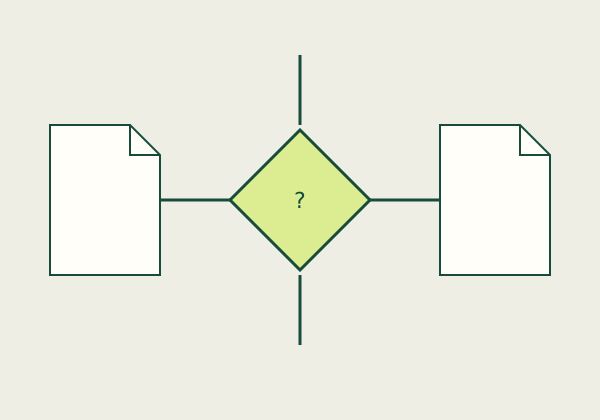
An attachment inside a PDF and a page in a merged PDF are not the same thing. A merged page appears in the main sequence when the document is opened. An embedded attachment remains a separate component that a reader must discover and open through an attachment panel or compatible application. Some recipients instead want separate uploads. Choose the structure that the recipient can process and that makes the relationship between files clear.
Understand a merged page sequence
A merged PDF places page content from multiple sources into one continuous sequence. This can help when a reader should move directly from an introduction to supporting pages. It also makes the combined page count easy to inspect. The source documents, however, are no longer presented as distinct files in the reader’s ordinary page view. Keep the originals in a separate folder and note their order in a manifest.
Folio Bench’s merge tool copies page content from selected PDFs in a chosen whole-file order. It does not embed arbitrary attachments inside the output. It does not offer page thumbnails for selecting individual pages within a source file. The operation may not preserve forms, signatures, bookmarks, attachments, metadata, or accessibility features from the sources. Inspect the final sequence and keep the original documents.
Understand an embedded attachment
An embedded attachment is a separate file stored inside a PDF container. A recipient may need a reader that exposes an attachment panel and may need to save the component file before opening it. The attachment can retain its own format and identity rather than being rendered as a page. That can be useful when the recipient needs the original spreadsheet, image, or source file alongside a cover PDF.
Attachments can also be missed. A browser preview might show only the main pages, and a reviewer may not notice that additional components are present. Use an attachment only when the recipient can access it and knows to look for it. Confirm that the attached format is allowed and that the main document clearly names the component.
Confirm whether separate uploads are better
A portal may provide distinct fields for different document categories. In that case, uploading separate files can be clearer than embedding or merging them. It may also let the recipient route each document appropriately. Follow the portal’s actual instructions and do not combine files just because a single download seems easier to manage.
If the recipient has a strict size cap, measure the final file or sum of files using the correct rule. A PDF with attachments may contain several large components even when its page count is small. The Folio Bench size checker only measures selected files; it does not enumerate attachments inside a PDF or predict what a portal will accept.
Compare structures before deciding
| Structure | Where content appears | What the reader needs | Common check |
|---|---|---|---|
| --- | --- | --- | --- |
| Merged PDF | In one page sequence | A PDF reader | Confirm order, page count, and feature limits |
| PDF with embedded files | Separate attachment components | A reader that exposes attachments | Confirm components are visible and can be saved |
| Separate uploads | Individual portal entries | The recipient’s submission system | Confirm categories, names, and limits |
| PDF Portfolio | Separate component files in a container | Compatible portfolio software | Confirm recipient viewer support |
These structures are not interchangeable. A PDF Portfolio, an embedded attachment, and a merged page packet may all contain related material but present it differently. Choose based on the recipient’s access path, not a general claim that one structure is more secure or more convenient.
Preserve and verify source documents
Keep each original file unchanged. If you create a merged sequence, compare it with your list and check that every intended page appears once. If you use a PDF with attachments, open the attachment panel and verify each component’s name, type, and ability to open. If you upload separate files, keep the portal confirmation for each required item.
Be careful with signed or fillable sources. A merged output can alter the state of a digitally signed file, and an attachment may remain separate from the visible signed pages. Ask the responsible recipient whether the original file must be submitted independently. A visible representation of a signature does not prove that an embedded source or combined output retains a valid cryptographic signature.
Questions to answer before preparing the packet
- Does the recipient require one file, several files, or named upload categories?
- Must supporting material appear as visible pages or remain in its original format?
- Can the recipient’s software open embedded components or a portfolio?
- Are page order, attachment names, or size limits prescribed?
- Do any source files contain forms, signatures, or features that must remain intact?
- Will you retain and verify every original and final output?
Frequently asked questions
Is attaching a file the same as merging it?
No. A merged document places content in the page sequence. An attachment remains a separate component that the reader must locate and open.
Does Folio Bench add attachments to PDFs?
No. Its merge tool combines page content. It does not add or extract embedded files.
Can a browser preview show all embedded files?
Not necessarily. Reader behavior varies. Confirm with the recipient which software it uses and whether attachments are accepted.
Should I send the original signed PDF separately?
If signature validity matters, retain the original and follow the recipient’s instruction. A merged output is a different document state and may not preserve the original signature validation.
Related guides
See merged PDF versus Portfolio, the local merge guide, and the document manifest checklist.
Sources
- Adobe: Attach files to PDFs — describes embedded-file attachments as separate components of a PDF.
- Adobe: Overview of PDF Portfolios — explains how portfolio components retain separate identities.
- Adobe: Combine files into one PDF — describes a sequential file-combination workflow.