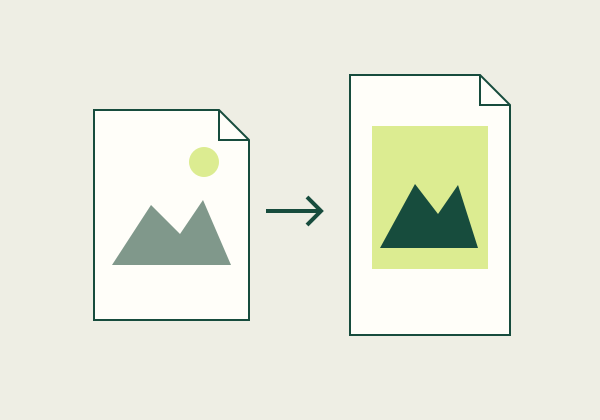
An image-only PDF is only as useful as the images you put into it. Before conversion, confirm that every page is present, correctly oriented, readable, and in the intended order. A PDF wrapper does not add searchable text, restore blurred details, or remove shadows from a poor scan. Folio Bench accepts JPG and PNG images and creates one US Letter page per image. It re-encodes the images using selected resolution and JPEG-quality settings, so inspect the result before sending it.
Capture a complete source set
Gather the original images in one working folder and compare them with the physical pages or source list. Check for missing backs, skipped pages, duplicate photographs, or images saved twice at different resolutions. If a multi-page packet is involved, write down the expected page count before conversion. A sequence can look plausible while silently omitting a page in the middle.
Use even lighting and a stable camera or scanner. Avoid a strong shadow across small print, glare on glossy paper, cropped signatures, fingers covering text, or an angle that distorts the page. If the page contains information near its edge, leave enough border so that the capture process does not cut it off. A converter cannot restore a number or handwritten mark that was never captured clearly.
Review crop, orientation, and contrast
Open each image at a useful zoom level and inspect the corners, headers, page numbers, and smallest important text. Rotate landscape pages intentionally; do not rely on the conversion tool to guess orientation. Check whether the image includes a desk, background, or neighboring page that could distract the reader. If cropping is necessary, keep all relevant information and retain an unchanged source image.
Do not apply aggressive black-and-white filtering to faint handwriting or shaded diagrams without comparing the result. A stronger contrast may make typed text clearer but erase subtle pencil marks, stamps, or colored distinctions. Choose an adjustment that preserves the content needed by the recipient. If the scan remains difficult to read, obtain a clearer source rather than compensating with a larger file alone.
Name and arrange pages before conversion
Use filenames that make the intended sequence visible, such as `01-cover.jpg`, `02-page.jpg`, and `03-receipt.jpg`. The Folio Bench image converter displays a reorderable list; check it against your source inventory before creating the PDF. It supports up to 20 images and 40 MB combined. Each image must remain under the 40-megapixel limit.
Whole-document naming matters when several scans are processed together. Avoid vague names such as `scan-final-final.jpg`. If dates determine sequence, use a consistent year-month-day pattern in your own working files and confirm that the printed dates match. The converter does not read or sort text inside the image. It uses the list order that you select.
Choose resolution and JPEG quality deliberately
The converter offers a maximum long-edge setting and JPEG quality choices. A lower maximum edge or quality can reduce output bytes, but the result varies with source content and cannot be predicted as a fixed compression ratio. Very small print, thin lines, low-contrast labels, and handwritten notes may lose detail. The default is an example, not a universal setting for filing or archival use.
Choose a difficult representative image first. Create a small sample output and compare it with the original at the same zoom. Check page orientation, dimensions, edge detail, and whether important marks remain legible. If the output looks poor, return to the original images, choose a less aggressive setting, and create a fresh PDF. Repeatedly re-encoding the previous output can accumulate quality loss.
Know the limits of an image-only PDF
The generated pages are raster images. They do not contain recognized text, OCR, interactive form fields, accessibility tags, or a verified reading order. A reader may be able to magnify the page, but search and text selection will not work as they do in a digital text document. If a recipient needs searchable text or a completed form, use a workflow that supports those requirements and review OCR output for errors.
Image conversion also does not validate signatures, dates, identities, or recipient acceptance. Keep the original images and the resulting PDF. If the document has legal, archival, or accessibility requirements, ask the recipient which format and process it accepts before converting.
Final image-to-PDF checklist
- Every expected page is present, including backs or continuation pages.
- Crop, lighting, orientation, and page sequence are correct.
- Important small text and handwritten marks remain readable.
- Resolution and JPEG quality are chosen for the content, not only file size.
- The downloaded PDF opens and its page count matches the source list.
- The original images remain unchanged in a separate location.
Frequently asked questions
Does the image-to-PDF tool add OCR?
No. Each output page is an image. Searchable text requires a separate OCR process, and recognition should be reviewed against the visible page.
Will a higher resolution always look better?
Not necessarily. The source image may already be low quality, and higher dimensions can increase file size without restoring missing detail. Compare output with the source.
Can transparent PNG areas remain transparent?
No. Transparent areas are filled with white in this converter. Inspect logos or diagrams with transparency before using the output.
Can I submit an image-only PDF to an agency or employer?
Only if the recipient accepts that format. Check current instructions for text-search, page, signature, and file-size requirements.
Related guides
Use the image conversion guide, the PDF handoff checklist, and how to diagnose a large PDF.
Sources
- Adobe scanned PDF settings — describes balancing scan image optimization and quality, separately from text recognition.
- Folio Bench image-to-PDF tool — states the file, pixel, resolution, and quality limits used by this local converter.